A day in the life of a Marketing Manager using Microsoft Planner


[vc_row el_class="single-row one"][vc_column width="1/2" el_class="col-left"][vc_single_image image="84059" img_size="full"][/vc_column][vc_column width="1/2" el_class="col-right"][vc_column_text]

8:30 AM

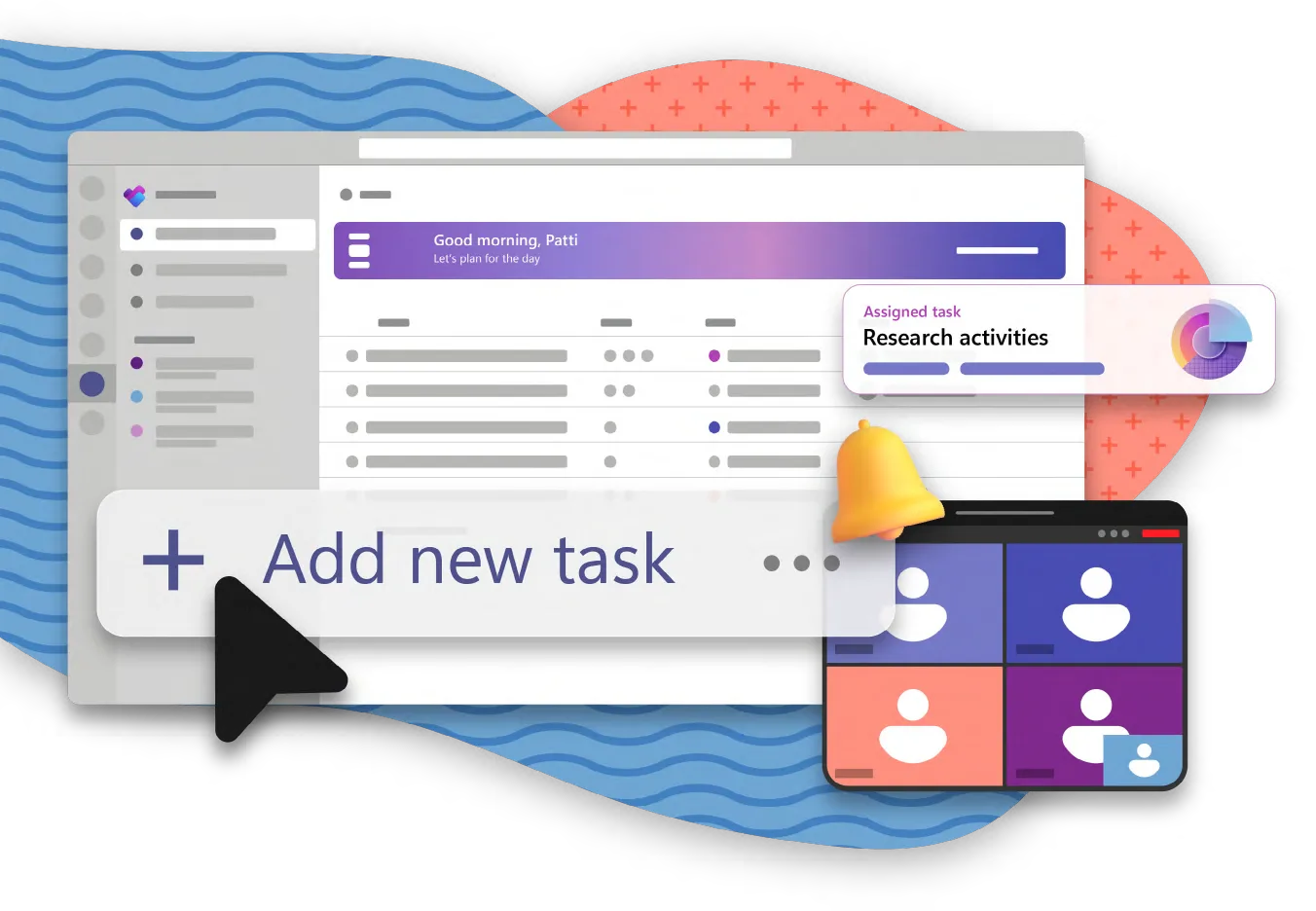
Patti starts her day as the host of her division’s weekly meeting on Microsoft Teams. She’s excited to kick off a strategic market analysis.

During the meeting, the team suggests several research activities that Patti will lead. From the My Day view in Planner, she selects Add new task to track and manage the research.[/vc_column_text][/vc_column][/vc_row][vc_row el_class="single-row two"][vc_column width="1/2" el_class="col-left"][vc_column_text]

10:30 AM

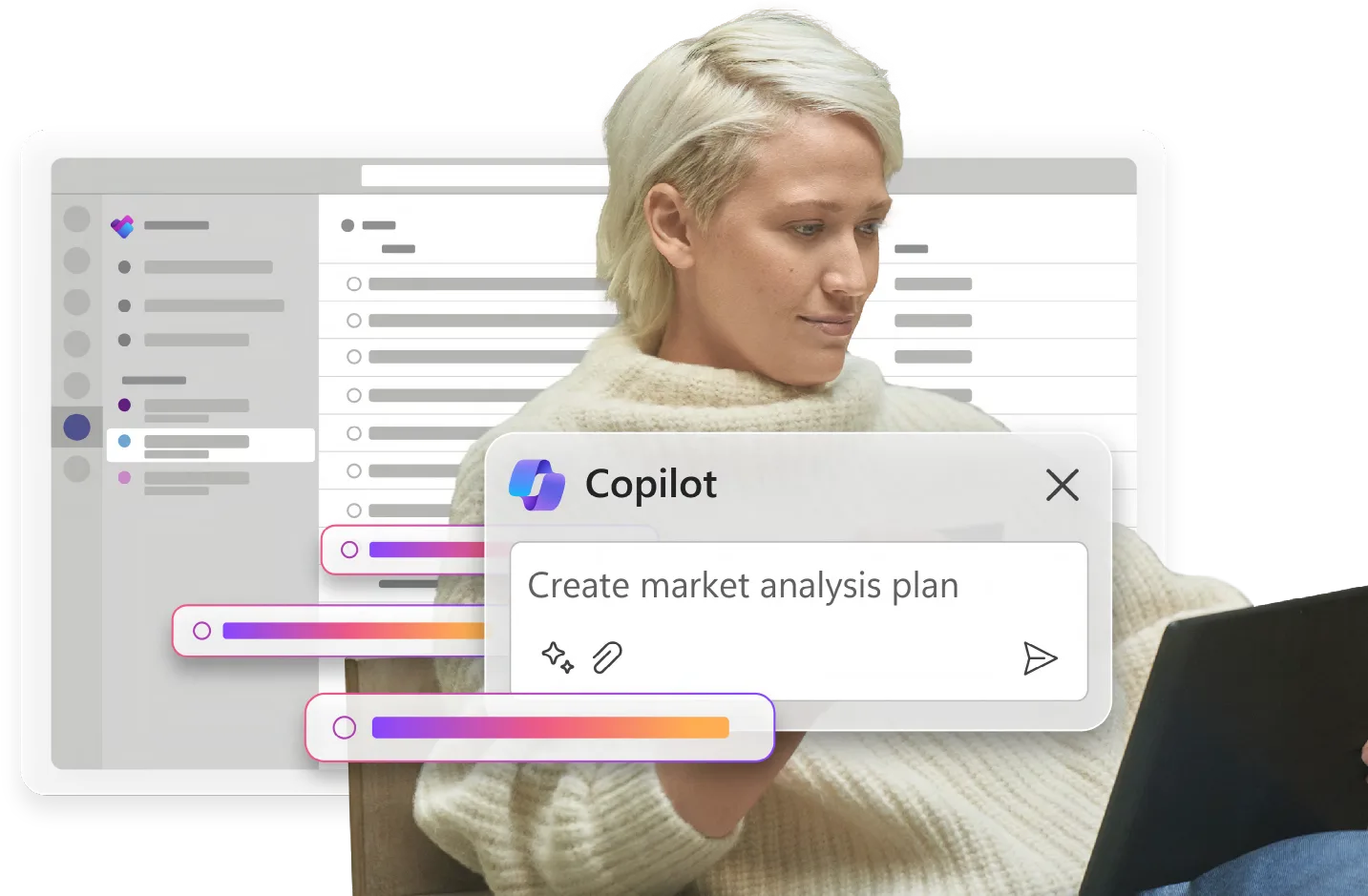
It’s time for Patti to create a plan to help her and her team complete the market analysis.

Rather than start from scratch, Patti asks Copilot in Planner* to create a plan. She uses the plan, tasks, and goals that Copilot delivers as starting points.

With Copilot, Patti is always in control. She likes the plan Copilot has created, but she knows she can always tweak it if she wants. Patti quickly adds the Copilot generated subtasks* and task dependencies* to refine the plan.[/vc_column_text][/vc_column][vc_column width="1/2" el_class="col-right"][vc_single_image image="84060" img_size="full" alignment="right"][/vc_column][/vc_row][vc_row el_class="single-row three"][vc_column width="1/2" el_class="col-left"][vc_column_text]

11:45 AM

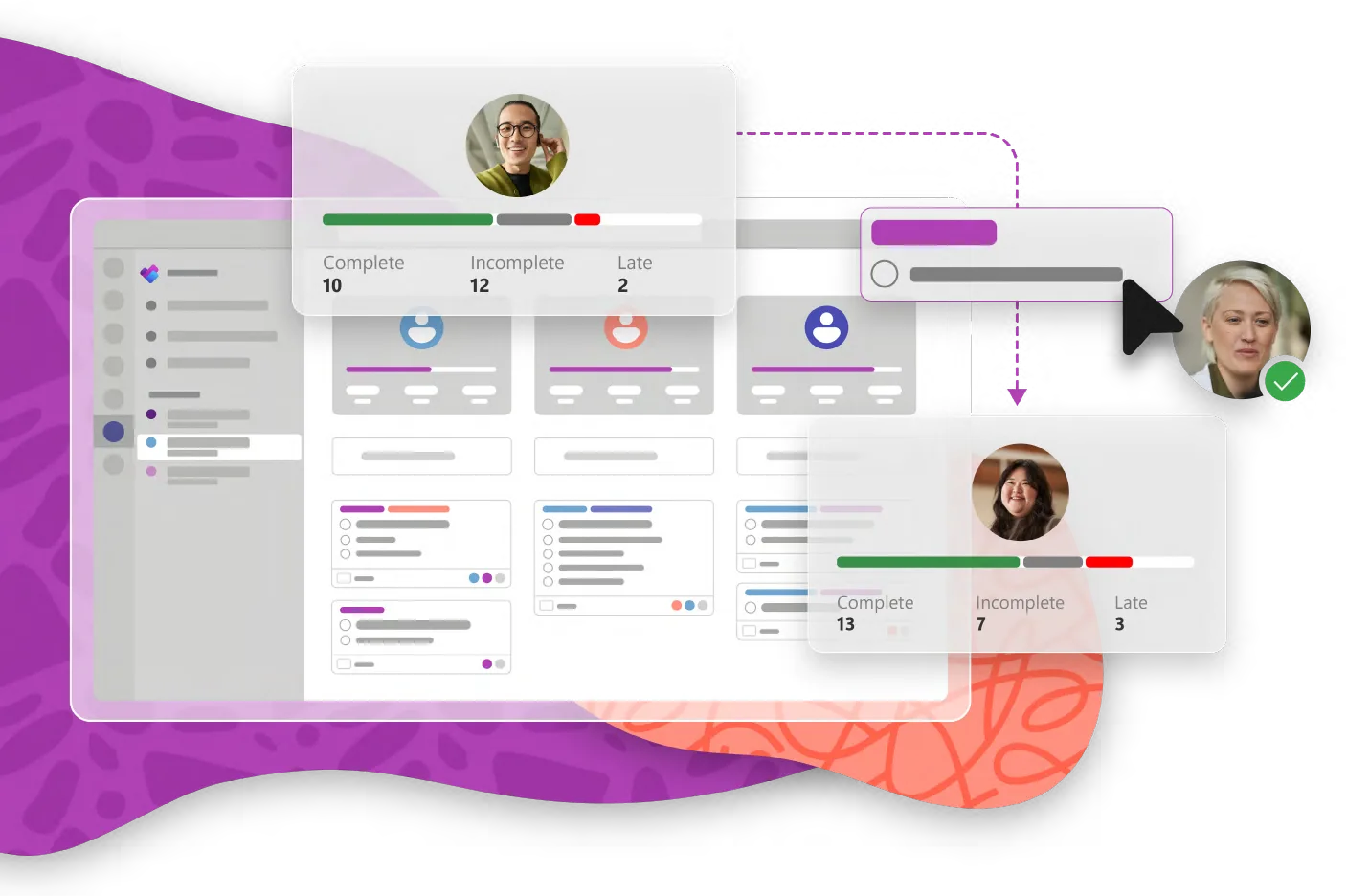
Patti is ready to share her plan. She invites project members by selecting an existing Microsoft 365 group that already includes everyone on her project team. After sharing the plan, Patti assigns work across the team, so everyone can quickly get started on their tasks.[/vc_column_text][vc_empty_space height="50px"][vc_column_text]

1:00 PM

Patti adds end dates to project goals using the Goals view* in Planner.[/vc_column_text][/vc_column][vc_column width="1/2" el_class="col-right"][vc_single_image image="84061" img_size="full" alignment="right"][/vc_column][/vc_row][vc_row el_class="single-row four"][vc_column width="1/2" el_class="col-left"][vc_single_image image="84062" img_size="full"][/vc_column][vc_column width="1/2" el_class="col-right"][vc_column_text]

1:45 PM

Next, she adds the plan to a dedicated Teams channel, so it lives where the team already collaborates.

With People view*, each member’s tasks and progress are visible channel wide. People view not only helps managers balance team workloads, but also it helps people determine whom to contact for questions or updates.

To track the status of her team’s tasks, Patti selects Task history.[/vc_column_text][/vc_column][/vc_row][vc_row el_class="single-row five"][vc_column width="1/2" el_class="col-left"][vc_column_text]

3:00 PM

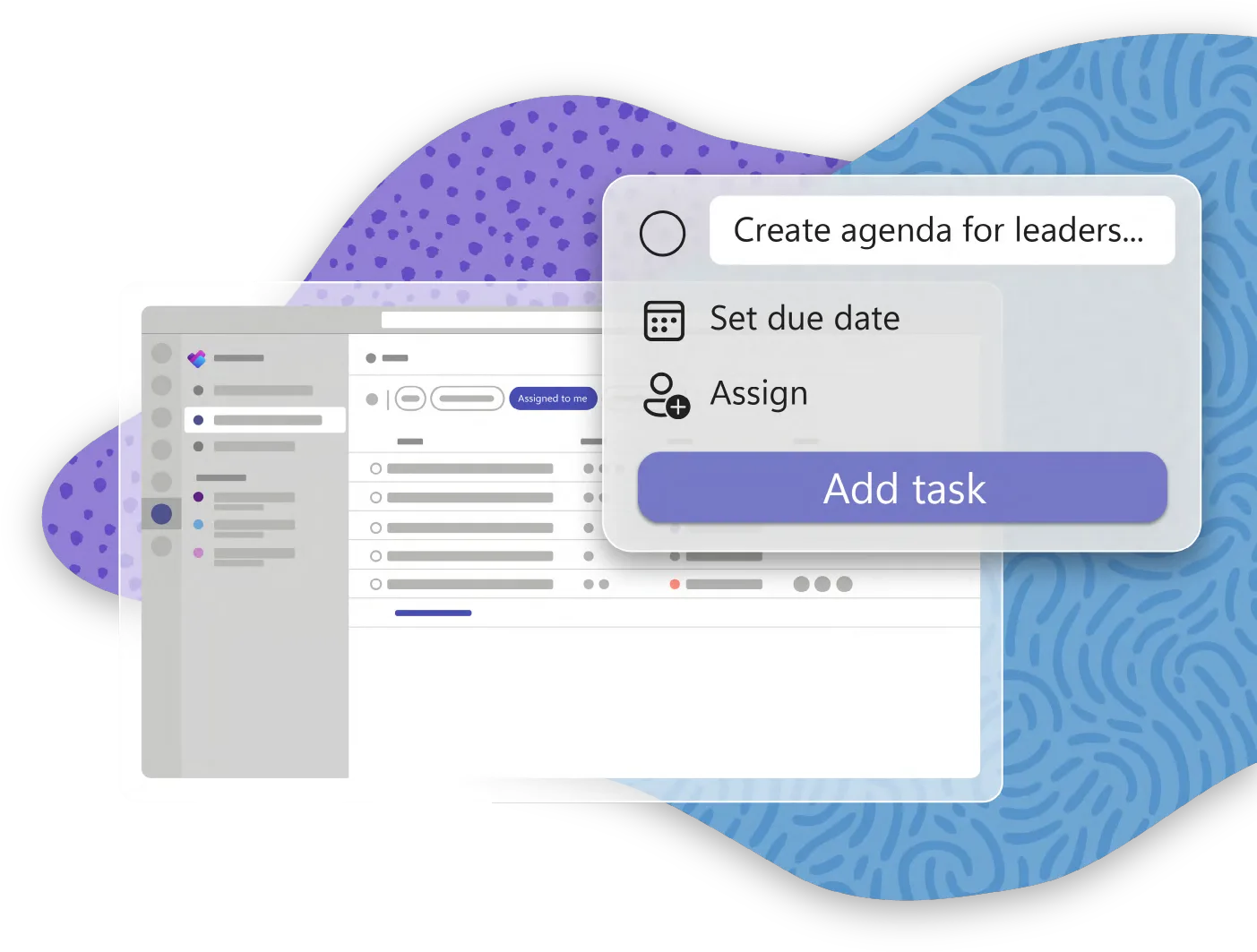
Patti wants to review the market analysis plan with leadership. She still has a lot to accomplish today, so she uses Planner to prioritize. Patti selects My Day and adds a task reminding her to create an agenda for her next leadership meeting.

For a full view of her workload, Patti selects My Tasks to see everything upcoming.[/vc_column_text][/vc_column][vc_column width="1/2" el_class="col-right"][vc_single_image image="84063" img_size="full" alignment="right"][/vc_column][/vc_row][vc_row el_class="single-row six"][vc_column width="1/2" el_class="col-left"][vc_single_image image="84064" img_size="full"][/vc_column][vc_column width="1/2" el_class="col-right"][vc_column_text]

4:30 PM

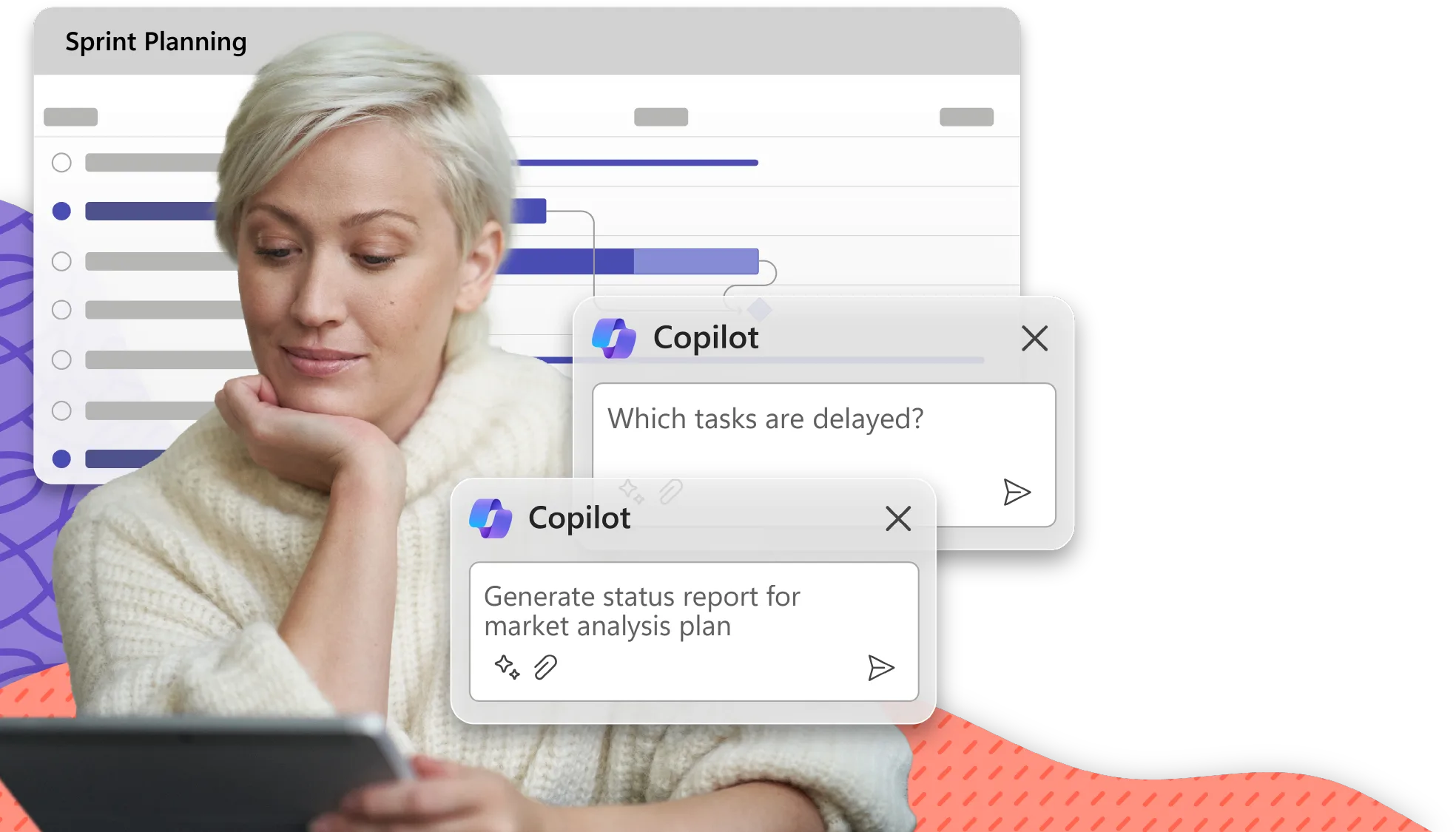
Before attending her last meeting, Patti wants to confirm she has completed today’s tasks. In the My Day view, she finds a pending task—she needs to send her leadership team a status report with her team’s progress on an ongoing development sprint. She selects Sprint Planning within the My Plans view, using Copilot* prompts to see overdue tasks and the plan’s overall status.[/vc_column_text][vc_empty_space height="50px"][vc_column_text]

5:15 PM

The Copilot-generated answers give Patti the information she needs to email an update.

With tasks assigned and relevant notes included, everyone knows what to do—no matter where or when they’re working.[/vc_column_text][/vc_column][/vc_row]