使用 Microsoft Planner 管理日常任務
認識一下迭戈,他是一名產品經理,他使用 Microsoft Planner 和 Microsoft Copilot 在 Microsoft 365 應用程式中創建、管理和追蹤他的日常工作。借助 Planner,Diego 可以掌控自己的專案並每天完成更多工作。
下載PDF版本產品經理使用 Microsoft Planner 的一天
[vc_row el_class="single-row one"][vc_column width="1/2" el_class="col-left"][vc_column_text]
上午 8 點 30 分
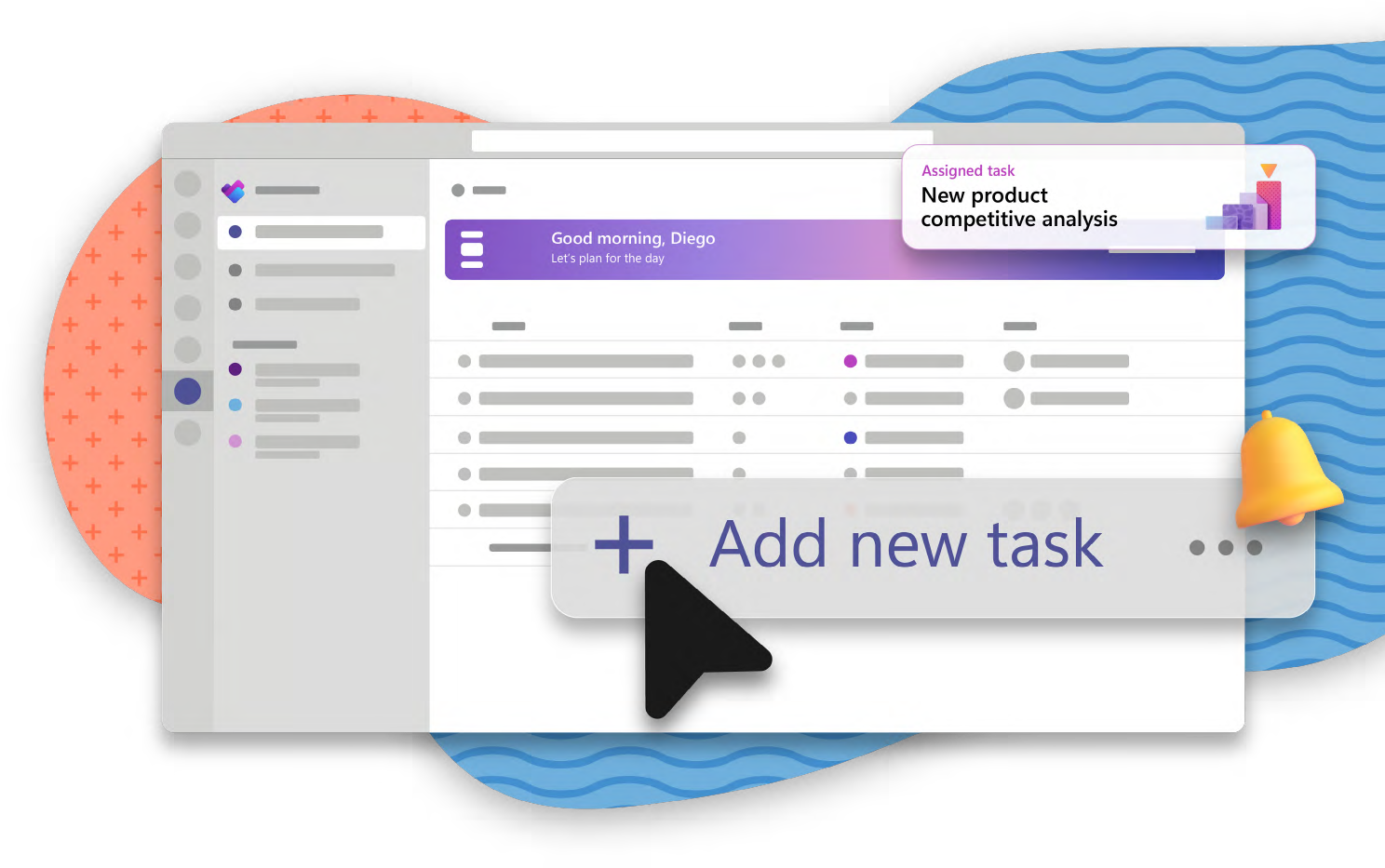
迭戈首先檢查 我的一天 在 Planner 中查看,快速查看他今天需要完成的所有事情。他從經理那裡看到了一項新任務,”新產品競爭力分析,」標記為緊急。為了完成這項工作,迭戈首先需要在每週員工會議之後進行市場調查。迭戈補充道 新任務 to address this later.[/vc_column_text][/vc_column][vc_column width="1/2" el_class="col-right"][vc_single_image image="84076" img_size="full" alignment="right"][/vc_column][/vc_row][vc_row el_class="single-row two"][vc_column width="1/2" el_class="col-left"][vc_single_image image="84077" img_size="full"][/vc_column][vc_column width="1/2" el_class="col-right"][vc_column_text]
上午 9:30
會議結束後,迭戈檢查了 我的任務 在 Planner 中查看以查看本周到期的其他任務。
他從 標記的電子郵件。 Planner 已經為這些任務創建了任務,因此迭戈知道要優先考慮什麼。接下來,他選擇 分配給我 to see all his tasks from across Planner plans, Microsoft Teams, and Microsoft Loop in one view. He sees a task that a coworker assigned to him. His coworker is adding him to a Sprint Planning workstream for the new product.[/vc_column_text][/vc_column][/vc_row][vc_row el_class="single-row three"][vc_column width="1/2" el_class="col-left"][vc_column_text]
上午 10:30
Planner 顯示另一個團隊正在領導衝刺計劃並且它已經在進行中。他已被添加為關鍵貢獻者。
迭戈在他的計劃中選擇了 我的計劃 視圖,他在其中查看目標、時間表和狀態等詳細資訊。透過選擇 時間軸 視圖,*迭戈可以看到直觀顯示的任務和時間軸。
為了了解他的貢獻如何融入 Sprint 規劃,Diego 檢查了 任務依賴關係.* He wants to ensure he’s not blocking anyone from completing their work.[/vc_column_text][/vc_column][vc_column width="1/2" el_class="col-right"][vc_single_image image="84078" img_size="full" alignment="right"][/vc_column][/vc_row][vc_row el_class="single-row four"][vc_column width="1/2" el_class="col-left"][vc_single_image image="84079" img_size="full"][/vc_column][vc_column width="1/2" el_class="col-right"][vc_column_text]
1:00 PM
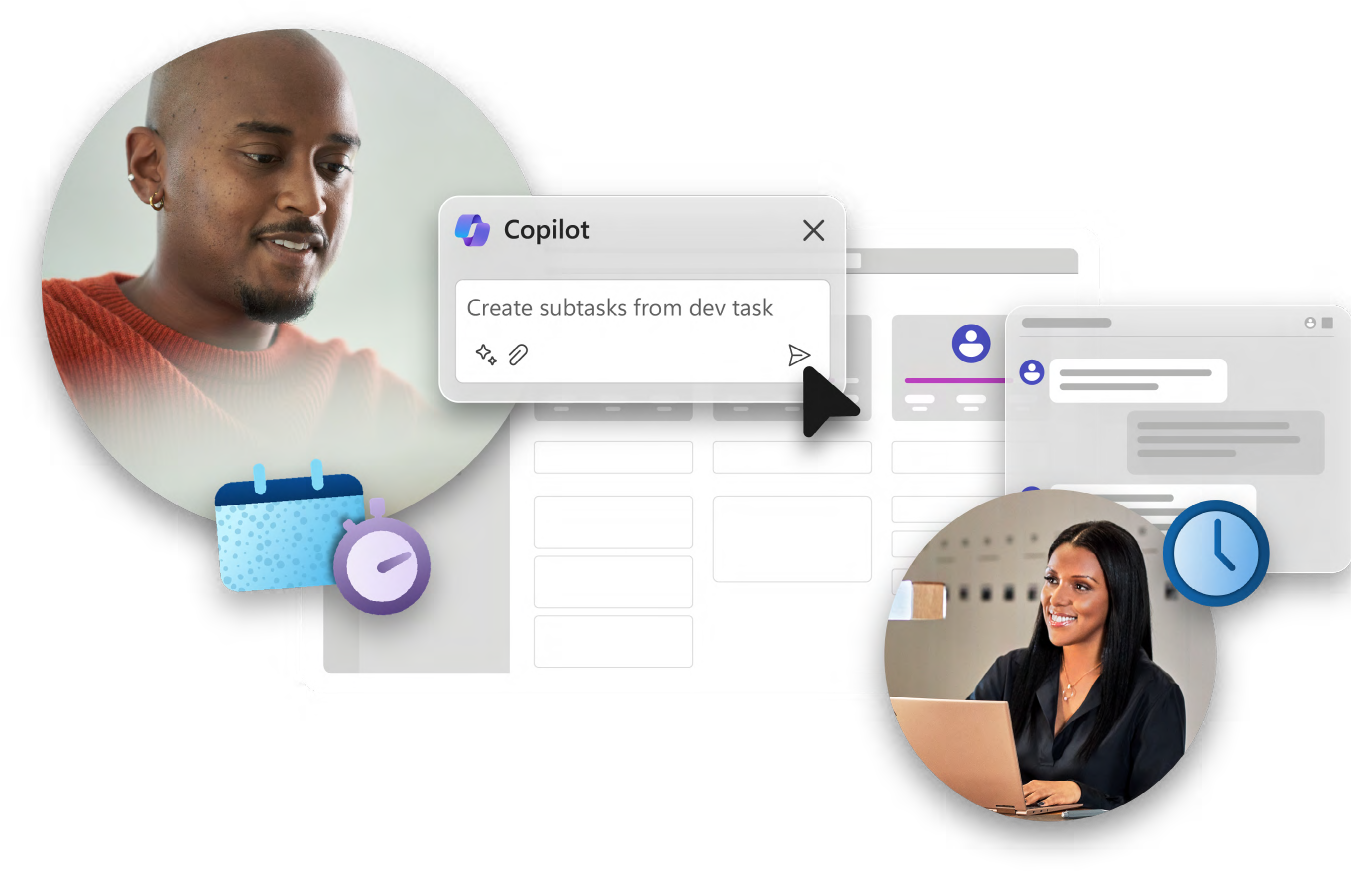
迭戈問 規劃器中的 Copilot* 幫助他將指派的任務分解為更小的、易於執行的步驟。
在審查 Copilot 時建議的 子任務,迭戈注意到人們依賴跨時區團隊的工作。他選擇了 人們 view to see the other tasks assigned across the team. Diego notices that his coworker from a previous initiative, Adele, has a related task on the project and she’s only an hour ahead. He messages her using the task’s Teams channel chat to ask his question.[/vc_column_text][/vc_column][/vc_row][vc_row el_class="single-row five"][vc_column width="1/2" el_class="col-left"][vc_column_text]
下午 1 點 45 分
After chatting with Adele, Diego realizes he needs to dedicate two hours of his day tomorrow to the project. He blocks time on his calendar to focus on the deliverable without distractions.[/vc_column_text][vc_empty_space height="50px"][vc_column_text]
下午3:00
迭戈的團隊也正在將現有產品從市場上淘汰。從 我的計劃,他選擇“產品棄用計劃”,然後選擇 木板 查看他的團隊負責的所有任務。
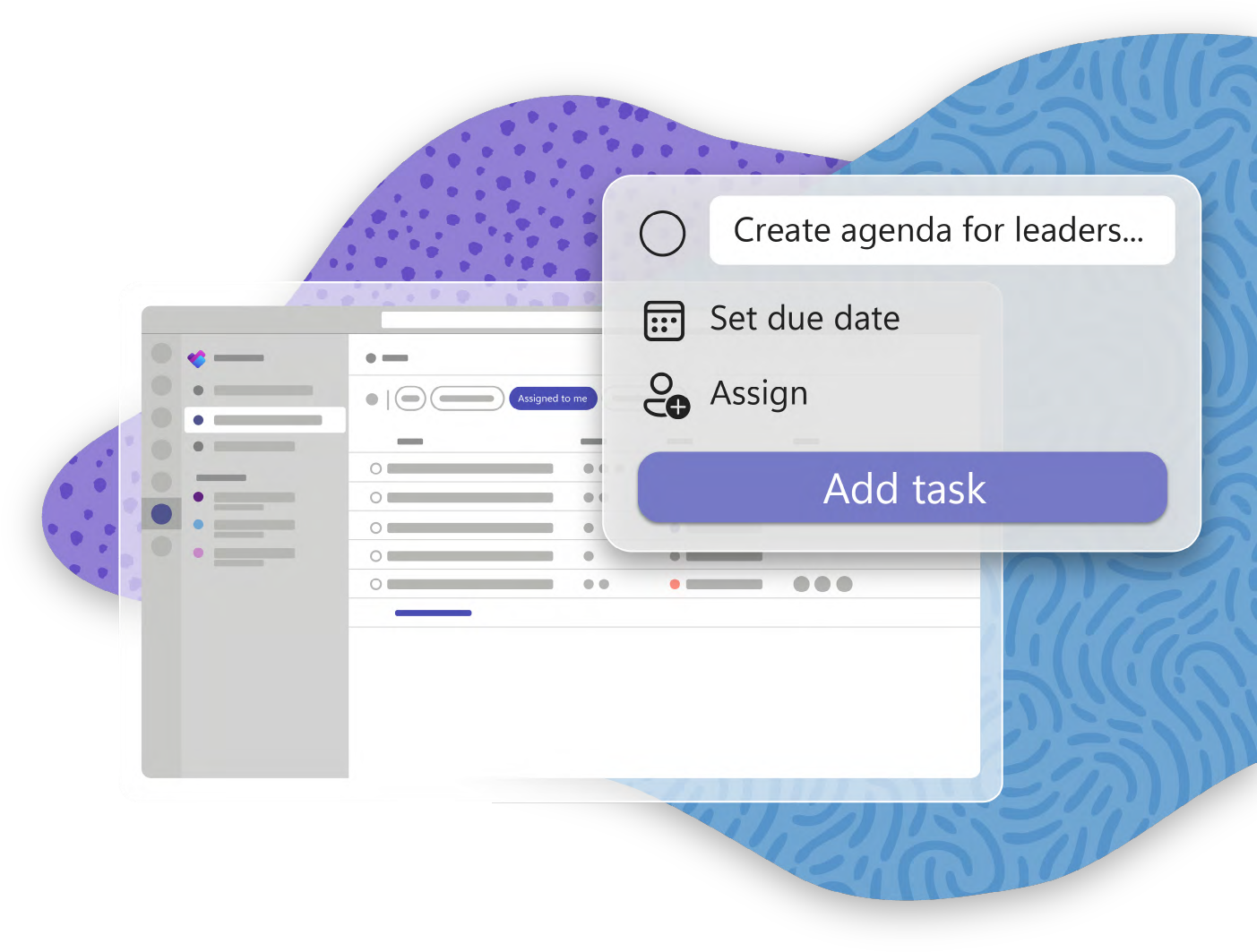
為了直觀地追蹤任務,Diego 之前創建了 水桶 產品棄用過程的每個階段。他 新增任務 to the “Executing” bucket, so he’ll remember to conduct a team orientation.[/vc_column_text][/vc_column][vc_column width="1/2" el_class="col-right"][vc_single_image image="84063" img_size="full" alignment="right"][/vc_column][/vc_row][vc_row el_class="single-row six"][vc_column width="1/2" el_class="col-left"][vc_single_image image="84080" img_size="full"][/vc_column][vc_column width="1/2" el_class="col-right"][vc_column_text]
下午 4:30
迭戈完成了今天早上開始的市場研究,因此他為經理完成了分析報告。
在回家之前,迭戈選擇了 我的任務 最後再檢查一遍,確認自己已經完成了所有需要做的事情。迭戈結束通話,對今天的進展感到非常滿意。