Professional project management with Microsoft Planner
Meet Alex, a Senior Program Manager at Contoso Grocery, an enterprise food and beverage company. Alex is using Microsoft Planner and Microsoft Copilot to orchestrate a cross-team product launch for a new line of ready-to-eat meal kits. From optimizing team collaboration to tracking every deadline, Planner helps keep Alex informed and the launch on course.
Download PDF versionA day in the life of a Senior Program Manager using Microsoft Planner
[vc_row el_class="single-row one"][vc_column width="1/2" el_class="col-left"][vc_column_text]
8:30 AM
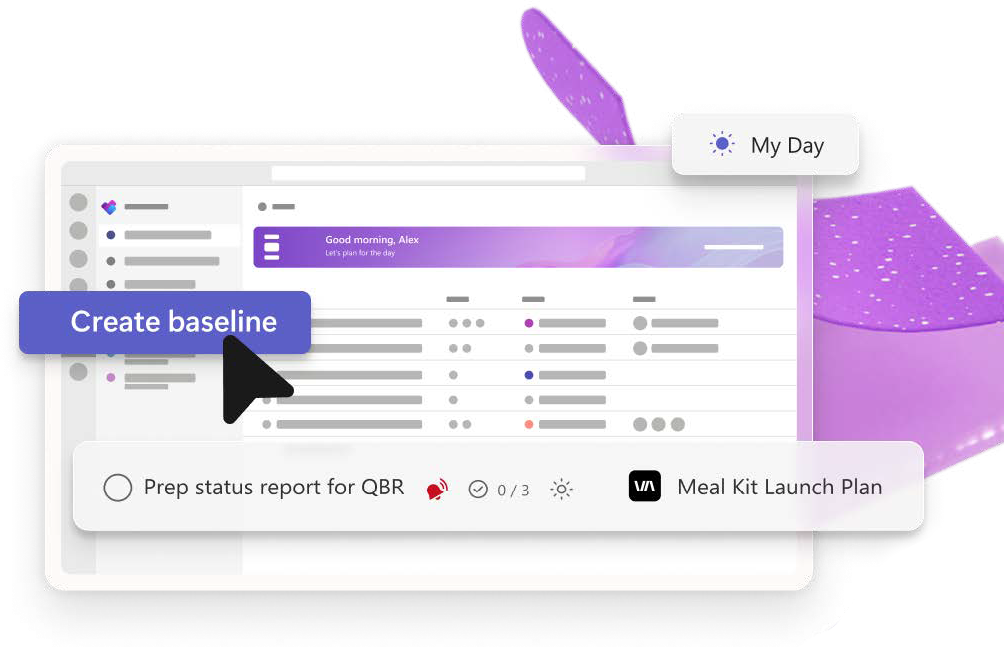
Alex starts his morning by checking My Day in Planner for a single view into what he needs to accomplish today. He sees a task assignment tied to the Meal Kit Launch Plan he’s leading: “Prep status report for cross-org Quarterly Business Review (QBR) next week.”
At the beginning of the launch project, Alex established a project baseline and received stakeholder approval. Timelines are running one week behind, so Alex will explore options to get back on track.[/vc_column_text][/vc_column][vc_column width="1/2" el_class="col-right"][vc_single_image image="87215" img_size="full" alignment="right"][/vc_column][/vc_row][vc_row el_class="single-row two"][vc_column width="1/2" el_class="col-left"][vc_single_image image="87214" img_size="full"][/vc_column][vc_column width="1/2" el_class="col-right"][vc_column_text]
9:00 AM
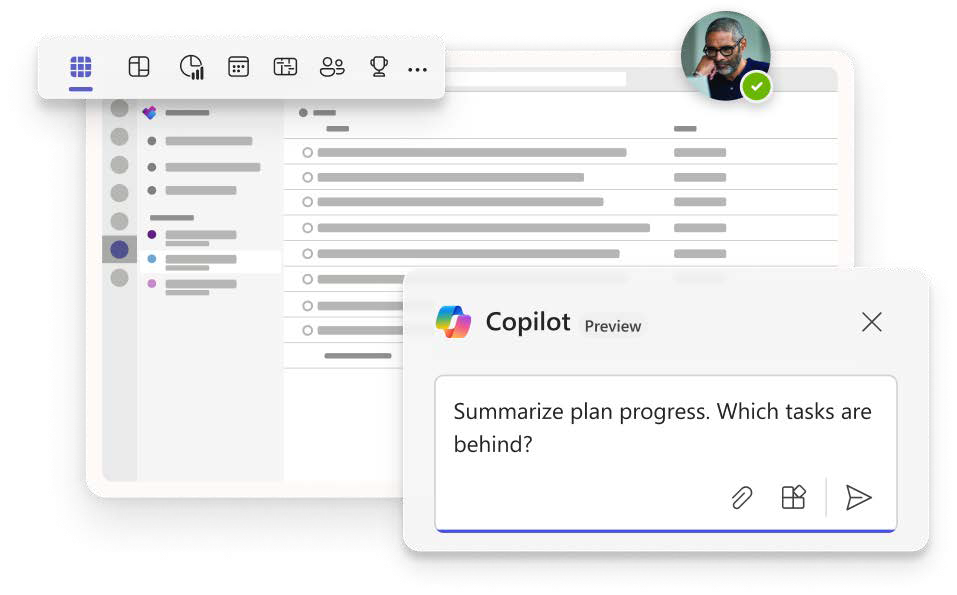
To begin his QBR status update, Alex clicks Go to premium plan right from the task for an overview of the full plan.
No need to comb through individual task details. Instead, he asks Copilot in Planner: “Summarize Meal Kit Launch Plan progress. Which tasks are behind?” Copilot identifies five late tasks, but one stands out: an at-risk task assigned to Babek in finance—”Approve vendor budget.”[/vc_column_text][/vc_column][/vc_row][vc_row el_class="single-row three"][vc_column width="1/2" el_class="col-left"][vc_column_text]
10:30 AM
Time for Alex’s first Microsoft Teams meeting of the day! Management wants to expand the launch to France
and Canada, which will require new tasks for the global marketing team.
Rather than adding individual tasks to the plan, Alex captures new workstreams during the meeting. He asks Copilot: “Add a new task to conduct message testing in France. Break into actionable steps. Duplicate for Canada.” [/vc_column_text][/vc_column][vc_column width="1/2" el_class="col-right"][vc_single_image image="87213" img_size="full" alignment="right"][/vc_column][/vc_row][vc_row el_class="single-row four"][vc_column width="1/2" el_class="col-left"][vc_single_image image="87212" img_size="full"][/vc_column][vc_column width="1/2" el_class="col-right"][vc_column_text]
11:00 AM
Strong collaboration across finance, supply chain, and other dependent workstreams is critical to this project.
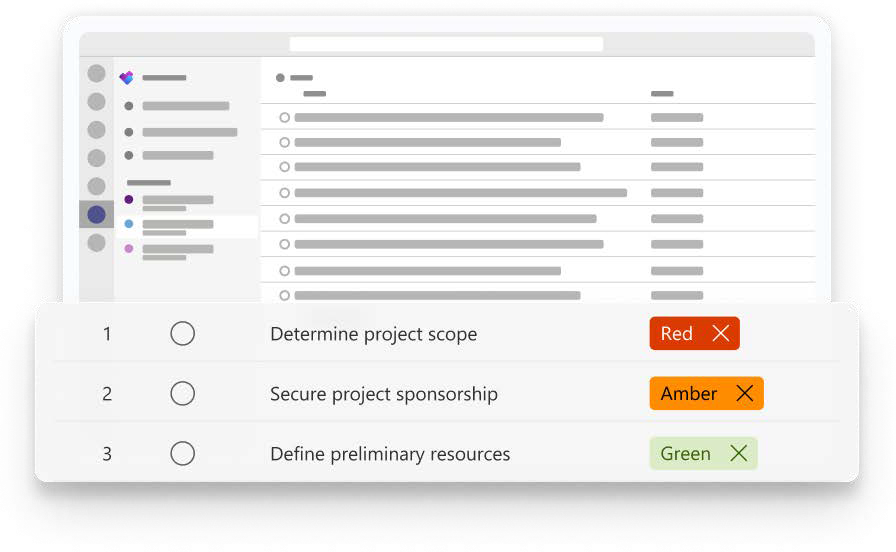
To enable visual status tracking for everyone involved, he creates a custom column from the Grid view of the Meal Kit Launch Plan. Collaborators can use red, amber, or green (RAG) status updates to indicate if their work is on track.[/vc_column_text][/vc_column][/vc_row][vc_row el_class="single-row five"][vc_column width="1/2" el_class="col-left"][vc_column_text]
1:00 PM
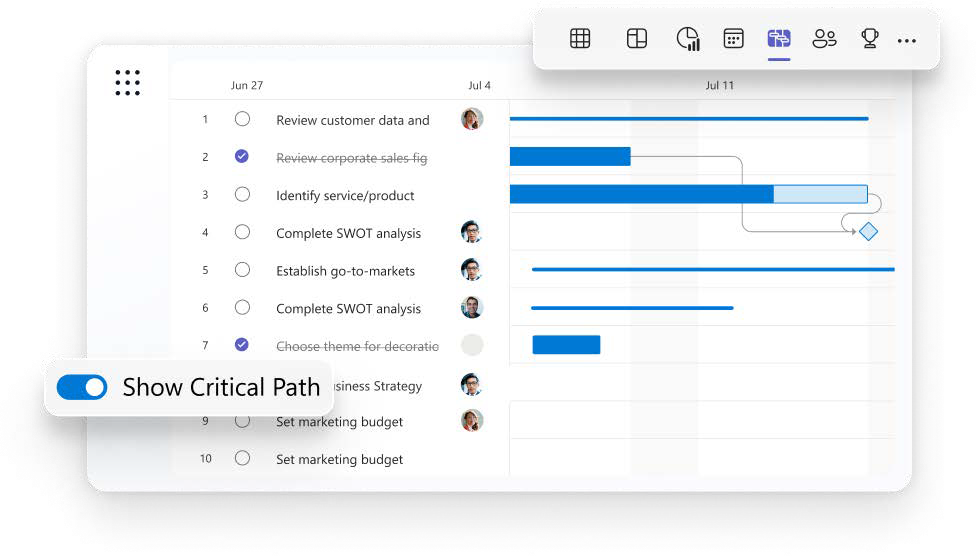
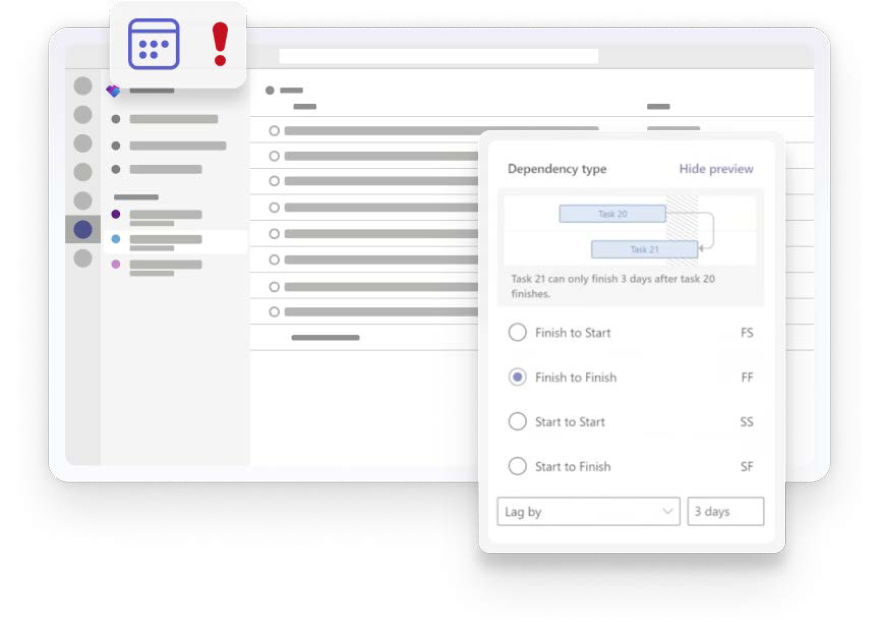
Alex wants to take a more proactive approach, closely monitoring critical tasks to keep key milestones on schedule and avoid further project delays. He turns on the critical path filter in Timeline view. Here, Alex can see every linked task that directly impacts the project’s finish date in one view. He sees that three critical tasks are dependent on a single resource: Annette, an operations program manager in France.[/vc_column_text][/vc_column][vc_column width="1/2" el_class="col-right"][vc_single_image image="87211" img_size="full" alignment="right"][/vc_column][/vc_row][vc_row el_class="single-row six"][vc_column width="1/2" el_class="col-left"][vc_single_image image="87210" img_size="full"][/vc_column][vc_column width="1/2" el_class="col-right"][vc_column_text]
1:30 PM
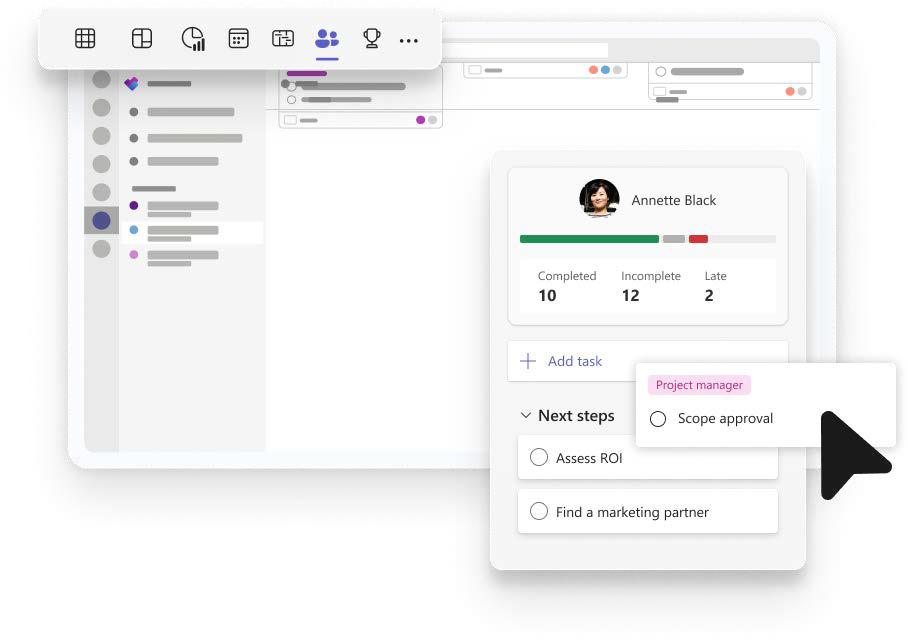
To ensure all critical tasks can be completed on schedule, Alex needs to free up Annette. Checking People view, he identifies other operations PMs with capacity. Using a simple drag-and-drop, Alex can reallocate tasks, balancing the workload across the team.[/vc_column_text][/vc_column][/vc_row][vc_row el_class="single-row seven"][vc_column width="1/2" el_class="col-left"][vc_column_text]
2:30 PM
Alex stops by Babek’s desk to discuss the overdue task assigned to finance: “Approve vendor budget.” Without
leaving Planner, the two can dig in.
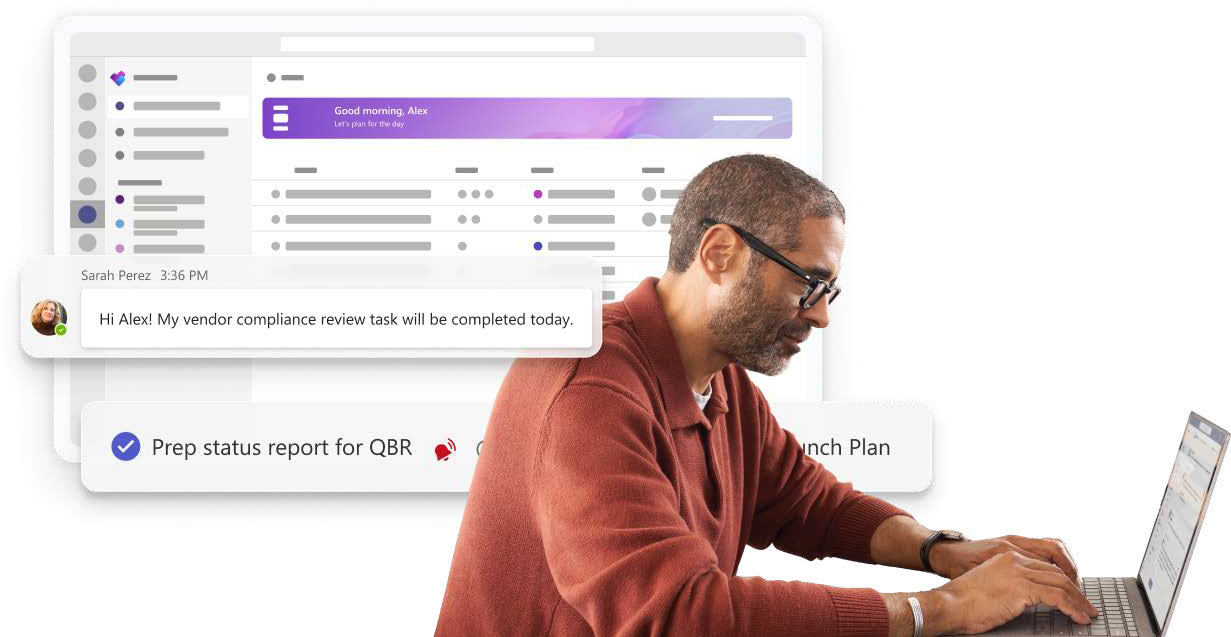
Alex sees a task dependency attached to the overdue task called “Vendor compliance review” assigned to Supply Chain Lead Sarah. From the task history, he sees that Sarah marked the custom status field red and changed the task status, pushing out the completion date by two weeks. Alex @mentions Sarah in a Teams chat, asking for background on the date change.[/vc_column_text][/vc_column][vc_column width="1/2" el_class="col-right"][vc_single_image image="87209" img_size="full" alignment="right"][/vc_column][/vc_row][vc_row el_class="single-row eight"][vc_column width="1/2" el_class="col-left"][vc_single_image image="87208" img_size="full"][/vc_column][vc_column width="1/2" el_class="col-right"][vc_column_text]
3:30 PM
Sarah is online and responds to Alex’s message in their 1:1 Teams chat. She lets Alex know she will complete
“Vendor compliance review” by end of day. Alex switches back to his My Day view and his QBR recap.
Now unblocked, finance is back on track, and Alex can end his day by polishing his project update for next week’s meeting.[/vc_column_text][/vc_column][/vc_row]
Recommended resources
Start using Microsoft Planner today
Try the premium capabilities of Microsoft Planner. Get started with a free one-month trial.
Learn more about the new Microsoft Planner
The new Microsoft Planner helps you effectively manage your work and achieve your goals.