Managing your daily tasks with Microsoft Planner
Meet Diego, a Product Manager who uses Microsoft Planner and Microsoft Copilot to create, manage, and track his day-to-day work across Microsoft 365 apps. With Planner, Diego stays on top of his projects and accomplishes more every day.
Download PDF versionA day in the life of a Product Manager using Microsoft Planner
[vc_row el_class="single-row one"][vc_column width="1/2" el_class="col-left"][vc_column_text]
8:30 AM
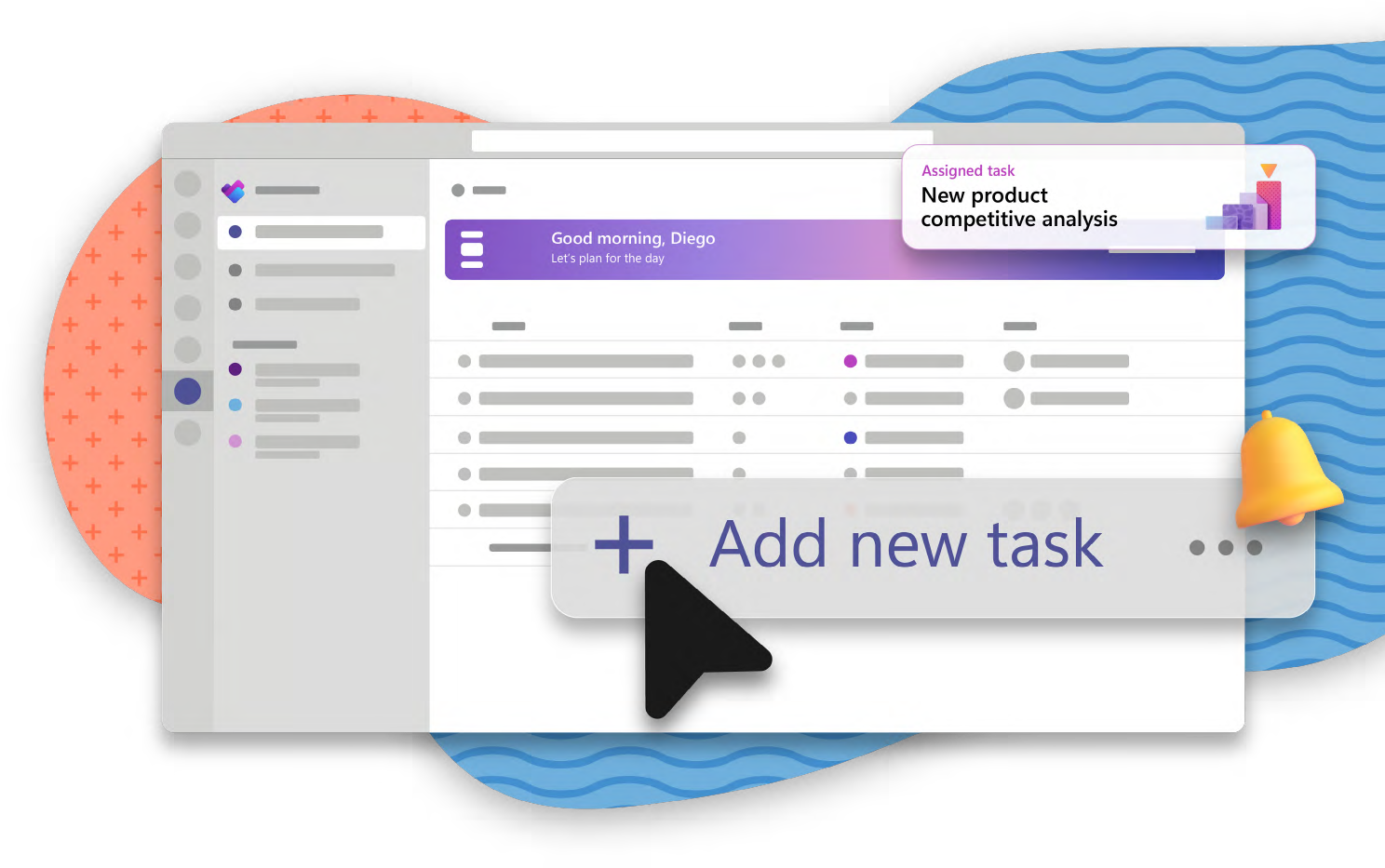
Diego starts by checking the My Day view in Planner for a quick view of everything he needs to get done today. He sees a new task from his manager, "New product competitive analysis," marked urgent. To complete it, Diego first needs to perform market research—right after the weekly staff meeting. Diego adds a new task to address this later.[/vc_column_text][/vc_column][vc_column width="1/2" el_class="col-right"][vc_single_image image="84076" img_size="full" alignment="right"][/vc_column][/vc_row][vc_row el_class="single-row two"][vc_column width="1/2" el_class="col-left"][vc_single_image image="84077" img_size="full"][/vc_column][vc_column width="1/2" el_class="col-right"][vc_column_text]
9:30 AM
After the meeting, Diego checks the My Tasks view in Planner to see other tasks due this week.
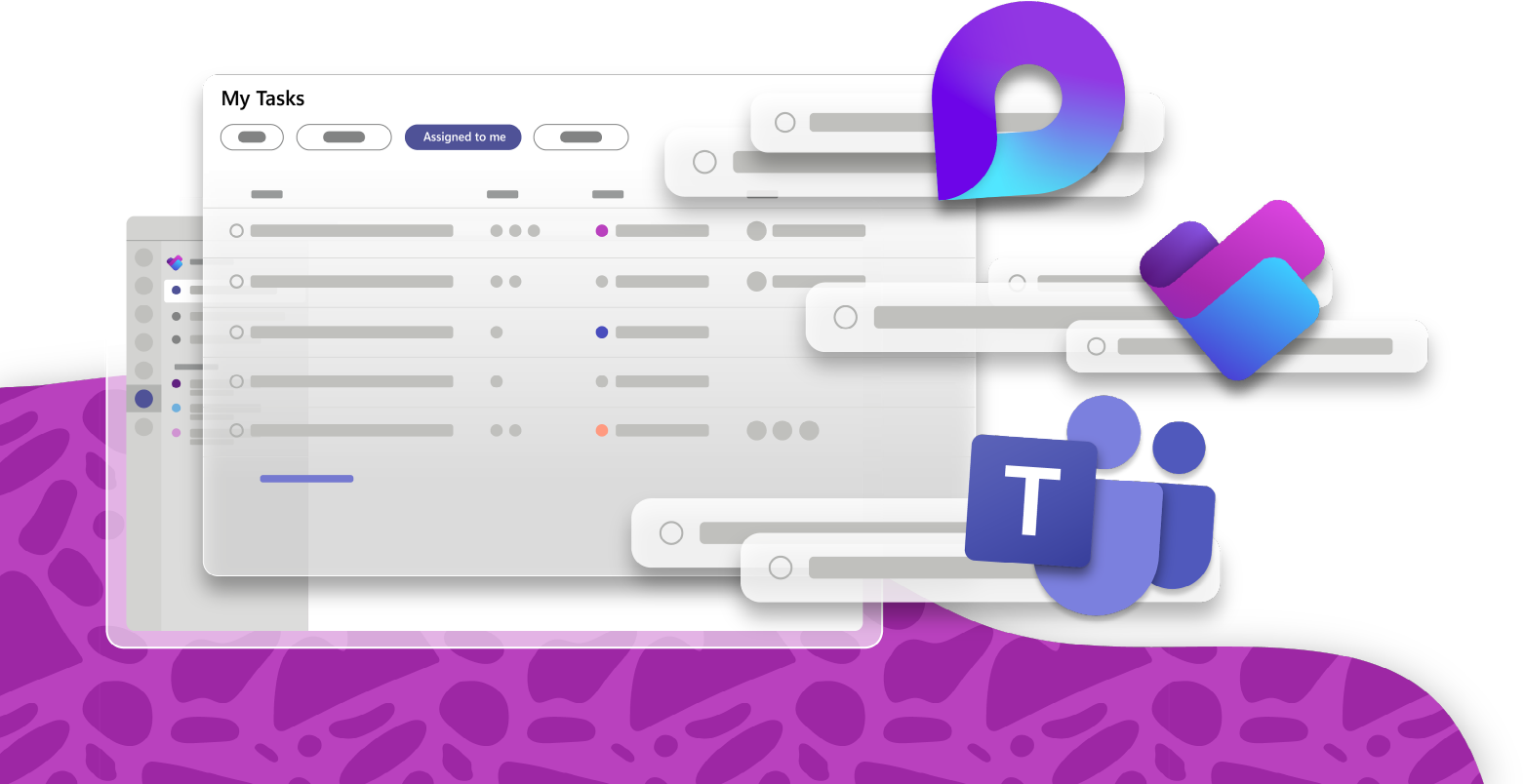
He starts with Flagged Emails. Planner has already created tasks for these, so Diego knows what to prioritize. Next, he selects Assigned to me to see all his tasks from across Planner plans, Microsoft Teams, and Microsoft Loop in one view. He sees a task that a coworker assigned to him. His coworker is adding him to a Sprint Planning workstream for the new product.[/vc_column_text][/vc_column][/vc_row][vc_row el_class="single-row three"][vc_column width="1/2" el_class="col-left"][vc_column_text]
10:30 AM
Planner shows that another team is leading the Sprint Planning and it’s already in progress. He’s been added as a key contributor.
Diego selects the plan in his My Plans view, where he reviews details such as goals, timeline, and status. By selecting Timeline view,* Diego can see the tasks and timeline displayed visually.
To learn how his contributions fit into Sprint Planning, Diego checks Task Dependencies.* He wants to ensure he’s not blocking anyone from completing their work.[/vc_column_text][/vc_column][vc_column width="1/2" el_class="col-right"][vc_single_image image="84078" img_size="full" alignment="right"][/vc_column][/vc_row][vc_row el_class="single-row four"][vc_column width="1/2" el_class="col-left"][vc_single_image image="84079" img_size="full"][/vc_column][vc_column width="1/2" el_class="col-right"][vc_column_text]
1:00 PM
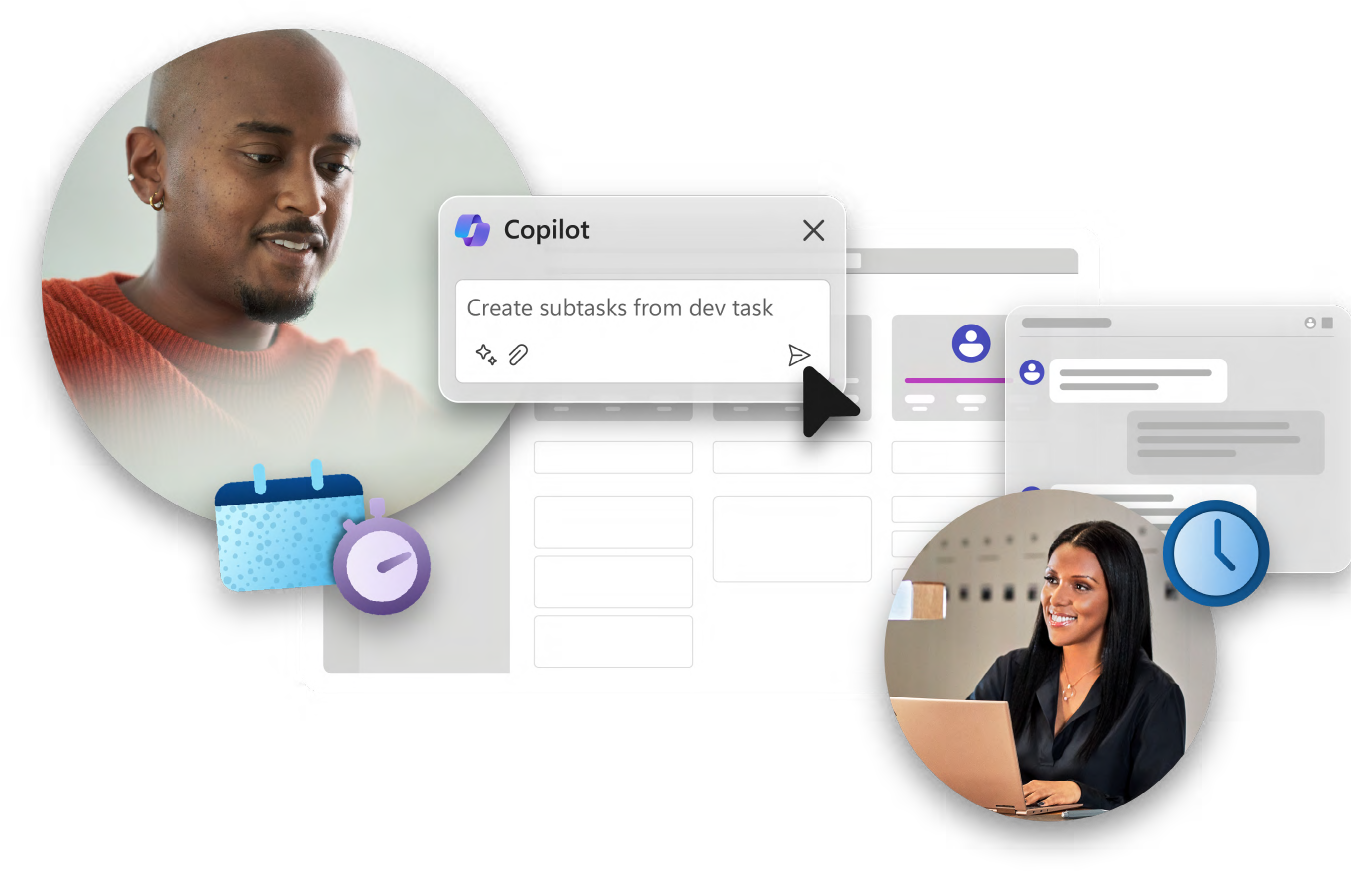
Diego asks Copilot in Planner* to help him break down an assigned tasks into smaller, easy-toaction steps.
While reviewing the Copilot-suggested subtasks, Diego notices that one relies on work from a team spread across time zones. He selects the People view to see the other tasks assigned across the team. Diego notices that his coworker from a previous initiative, Adele, has a related task on the project and she’s only an hour ahead. He messages her using the task’s Teams channel chat to ask his question.[/vc_column_text][/vc_column][/vc_row][vc_row el_class="single-row five"][vc_column width="1/2" el_class="col-left"][vc_column_text]
1:45 PM
After chatting with Adele, Diego realizes he needs to dedicate two hours of his day tomorrow to the project. He blocks time on his calendar to focus on the deliverable without distractions.[/vc_column_text][vc_empty_space height="50px"][vc_column_text]
3:00 PM
Diego’s team is also in the process of retiring an existing product from market. From My Plans, he selects the "Product Deprecation Plan," and then selects Board view to see all the tasks his team is responsible for.
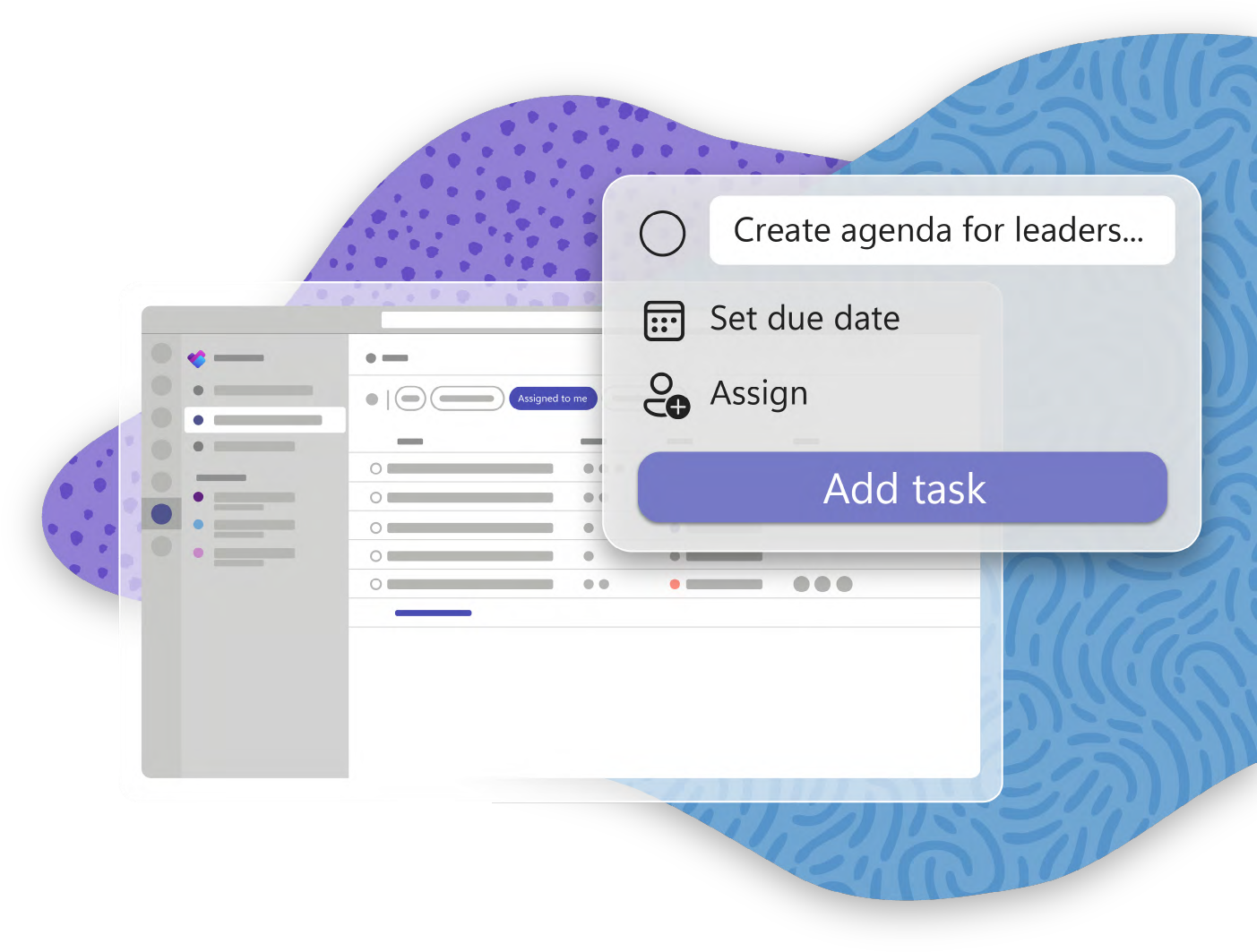
To visually track tasks, Diego previously created buckets for each phase of the product deprecation process. He adds a task to the “Executing” bucket, so he’ll remember to conduct a team orientation.[/vc_column_text][/vc_column][vc_column width="1/2" el_class="col-right"][vc_single_image image="84063" img_size="full" alignment="right"][/vc_column][/vc_row][vc_row el_class="single-row six"][vc_column width="1/2" el_class="col-left"][vc_single_image image="84080" img_size="full"][/vc_column][vc_column width="1/2" el_class="col-right"][vc_column_text]
4:30 PM
Diego completes the market research he started this morning, so he finalizes the analysis report for his manager.
Before heading home, Diego selects the My Tasks view one last time to confirm he has accomplished everything he needed to. Diego signs off, feeling great about his progress today.[/vc_column_text][/vc_column][/vc_row]
Recommended resources
Start using Microsoft Planner today
Try the premium capabilities of Microsoft Planner. Get started with a free one-month trial.
Learn more about the new Microsoft Planner
The new Microsoft Planner helps you effectively manage your work and achieve your goals.